

2025 Masterclass Edition
Ultimate Guide: How to Easily Set Up IPTV on Firestick (All Models)
Executing a proper IPTV Firestick setup is the most important step in cutting the cord and accessing global content. Whether you own the latest Fire TV Stick 4K Max (2nd Gen) or the budget-friendly Lite version, the IPTV Firestick setup process remains the gold standard for home entertainment in 2025. This guide provides a fail-proof, step-by-step blueprint to turn your Amazon device into a professional streaming hub.
Phase 1: Preparing Your Firestick for Third-Party Apps
Before you can begin the IPTV Firestick setup, you must unlock the device's ability to "sideload" applications. Amazon hides these developer settings by default to ensure security, but enabling them is essential for high-performance players like TiviMate or IPTV Smarters Pro.
- Go to Settings > My Fire TV > About.
- Highlight the name of your device and click the Select button 7 times rapidly until it says "You are now a developer."
- Go back one screen to Developer Options and ensure Install Unknown Apps is available.
Phase 2: Installing the "Downloader" Utility
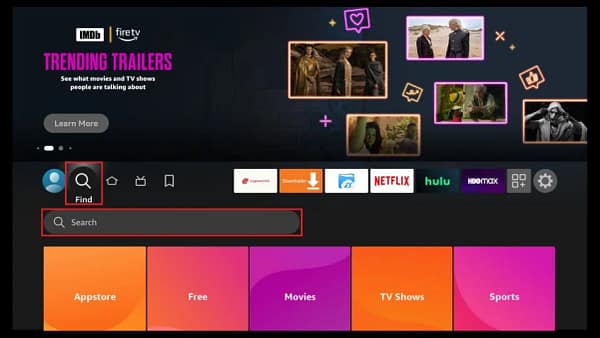
A successful IPTV Firestick setup requires the "Downloader" app, which acts as a browser to grab APK files directly from the internet. Search for "Downloader" on the Amazon App Store and install it. Once opened, you must grant it permission to access your files—this is crucial for the app to save the IPTV player installers to your device's storage.
Phase 3: Setting Up IPTV Smarters Pro or TiviMate
For most users, the IPTV Firestick setup involves using **IPTV Smarters Pro** due to its ease of use. In Downloader, enter the code 5546232 to download the latest Smarters Pro APK. After installation, launch the app and choose "Login with Xtream Codes API." This method is superior to M3U links because it automatically categorizes your channels and updates your EPG (TV Guide) every time you open the app.
If you are an advanced user, your IPTV Firestick setup might involve **TiviMate**. Use Downloader code 272483 to install it. TiviMate offers a premium, cable-like interface that is widely considered the best in the industry for 2025. It supports multi-view, allowing you to watch up to four live sports matches simultaneously on a single screen.
Phase 4: Optimization & Security
To finalize your IPTV Firestick setup, you must optimize for speed. Go into the settings of your IPTV player and enable **Hardware Acceleration**. This forces the Firestick’s dedicated GPU to decode video, resulting in smoother 4K playback and less strain on the processor. Additionally, always use a VPN during your IPTV Firestick setup. A VPN prevents ISP throttling, ensuring that your 4K streams don't buffer during peak viewing hours like Sunday Night Football or major UFC events.
Troubleshooting Your IPTV Firestick Setup
If you encounter an "Authorization Error" during your IPTV Firestick setup, double-check your credentials. Most errors are caused by a single typo in the Server URL or Password. If the app crashes, clear the "Cache" in the Firestick Application settings. This refreshes the memory without deleting your channel list. A well-maintained IPTV Firestick setup should last you years without needing a full reset.
Ready to test your new setup? Connect with EuropeLiveTV today for the most stable 2025 server connection.